Associate a report with an Axiell Sapphire Task.
Description
This Registry entry associates an EMu report with an Axiell Sapphire Task.
 What is a Sapphire Task?
A Sapphire project can include one or more Forms, each of which can be selected from the Dashboard as needed (details about working with Forms can be found here). Where it makes sense, two or more Forms can be added to a Task:
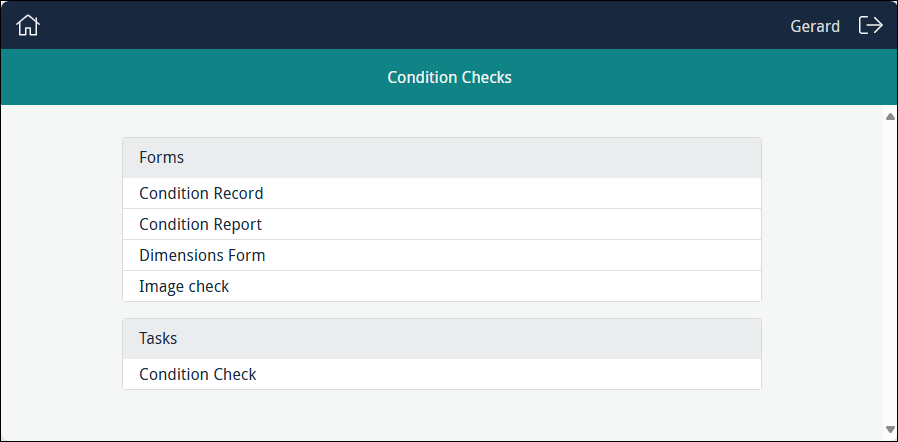
With a Task it is possible to work through multiple Forms in sequence without the need to select each Form separately from the Dashboard. In the example above, the four Forms listed in the Forms section all process data in the Condition Checks module and they have been added to the Condition Check Task. When the Task is run, the first Form, Condition Record, will display:
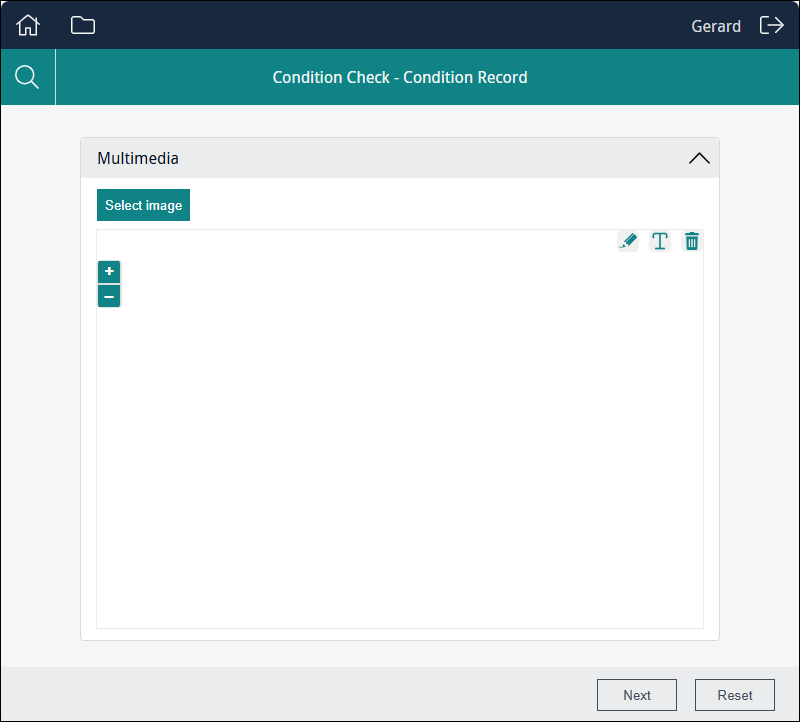
When the user completes the Form and selects Next, the next Form in the sequence will display. When the final Form in the sequence is reached, the Next button is replaced with the Save button:
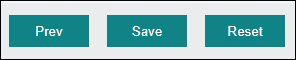
Selecting Save will save all data added to each of the Forms in the current sequence, modifying affected records and creating records as required, returning then to the first Form in the sequence.
A Task can be set up to report on data entered during the current sequence of Forms. In this case the final Form in a sequence includes a Preview button rather than a Save button which, when clicked, lists the report(s) associated with the Task:
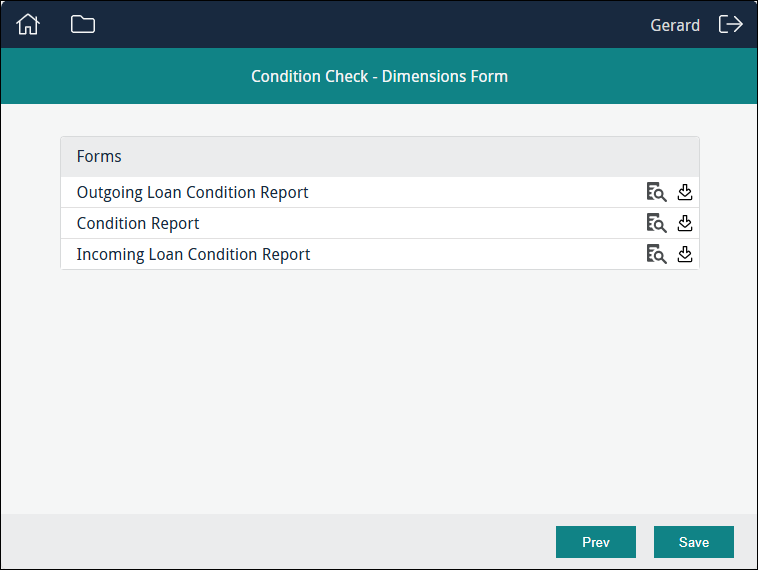
A report of the data entered during the current sequence of Forms can be viewed  and / or download
  . The reporting cache is cleared when Save is selected, and the first Form in the sequence is displayed and the cycle begins again.
Tip: Only data entered during the current sequence of Forms is included in a report.
The Task Print Registry entry associates a Sapphire report with a Task in a folioproject, making it available in the list of reports at the end of a Task's sequence of Forms.
Other Registry entries required
A Sapphire report is configured as any other EMu report (details here). In the example above, the Forms included in the Task all modify data in the Condition Checks (econdition) module and the three reports available to the Task were all defined in the Condition Checks module:
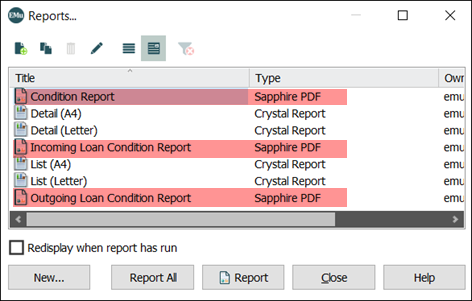
Note that the report Type = Sapphire PDF.
As with an EMu report, several Reports Registry entries are also required to set up a Sapphire report:
- Reports|Action (define the action for each report type), e.g.:
SystemSettingReportsActionSapphire PDFLaunch Temp %1 - Reports|Filter (define a filter that needs to run before sending the report output to the client), e.g.:
SystemSettingReportsFilterSapphire PDFsapphirepdf -f%x -r%t
Usage
This Registry entry can be assigned to users and groups:
| Key | User | Group | Group |
|---|---|---|---|
| Key 1 | User
|
Group
|
Group
|
| Key 2 | user | group | Default
|
| Key 3 | Project
|
||
| Key 4 | project id | ||
| Key 5 | Task Print
|
||
| Key 6 | task id | ||
| Value | report name | ||
In pipe-delimited format:
User
|
user | Project
|
project id | Task Print
|
task id | report name |
Group
|
group | Project
|
project id | Task Print
|
task id | report name |
Group
|
Default
|
Project
|
project id | Task Print
|
task id | report name |
where:
|
project id |
is the unique ID for the project defined when the project was named. |
| task id | is the Identifier of the Task defined when the Task was created. |
|
report name |
is the title of a report (where Type = In the example above, the Forms included in the Task all modify data in the Condition Checks (
|
Example
The following example associates the Outgoing Loan Condition Report report with a Task:
| Field | Setting |
|---|---|
| Key 1 | Group
|
| Key 2 | Default
|
| Key 3 | Project
|
| Key 4 | condition-checks
|
| Key 5 | Task Print
|
| Key 6 | task5151
|
| Value | Outgoing Loan Condition Report
|